Why Does Umami Show 0 Seconds Visit Duration? (And How to Fix It)
- DancingMacaw
- Development , Analytics
- 22 Sep, 2026
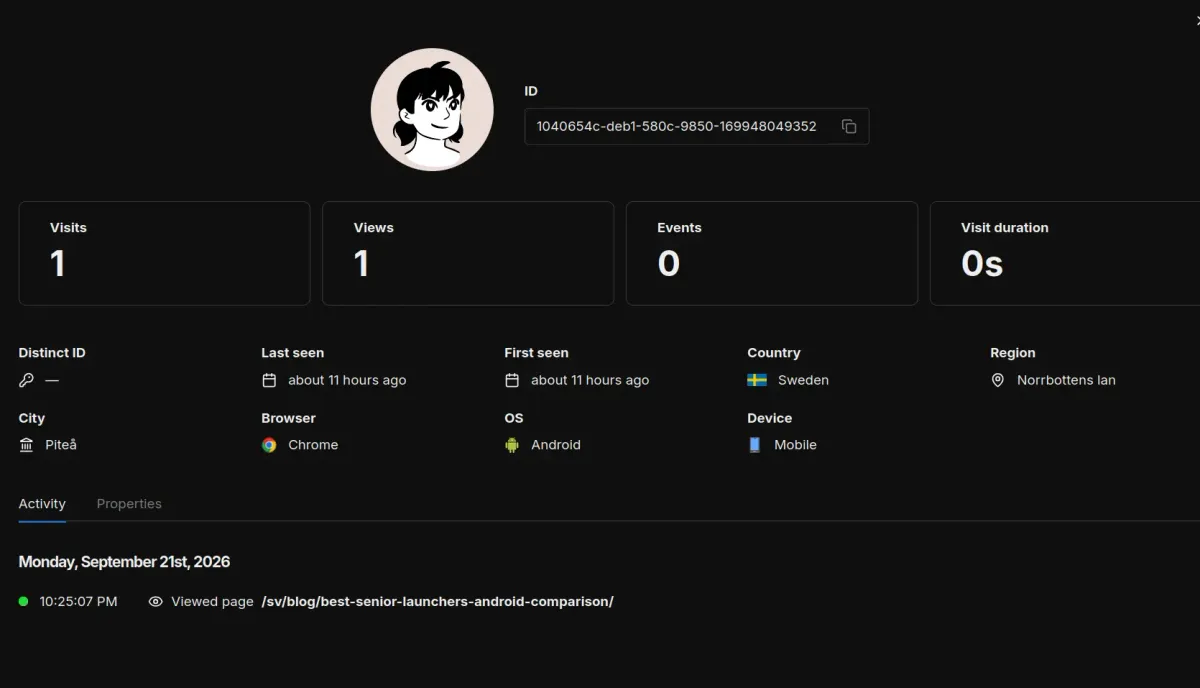
We’ve all been there: You open your Umami Analytics Dashboard, see pageviews rolling in for your latest blog post, but the visit duration is stuck at a disappointing 0 seconds (0s).
Did all those visitors bounce immediately? Don’t panic: in most cases, they didn’t!
In this article, you’ll learn why Umami displays 0s for single-page visits and how to capture accurate reading time with just a few lines of JavaScript.
⚡ TL;DR
- The Problem: Umami calculates visit duration as
Last Event Timestamp - First Event Timestamp. If a reader lands on your page, reads the article, and leaves without clicking another link or triggering an event, there’s only one timestamp (10:00:00 - 10:00:00 = 0s). - The Root Cause: A visitor could spend 5 minutes attentively reading your post and then close the tab—without a second event, Umami has no way of knowing how long they stayed.
- The Solution: Send follow-up events using
umami.track(). Popular approaches include Scroll Tracking (e.g., at 50% & 90% scroll depth) or Heartbeat Pings (e.g., every 15 seconds).
🔍 The Problem: How Umami Calculates Visit Duration
Privacy-focused analytics tools like Umami operate without aggressive tracking cookies or invasive user profiling. While this is fantastic for user privacy, it introduces a technical constraint for session duration calculations:
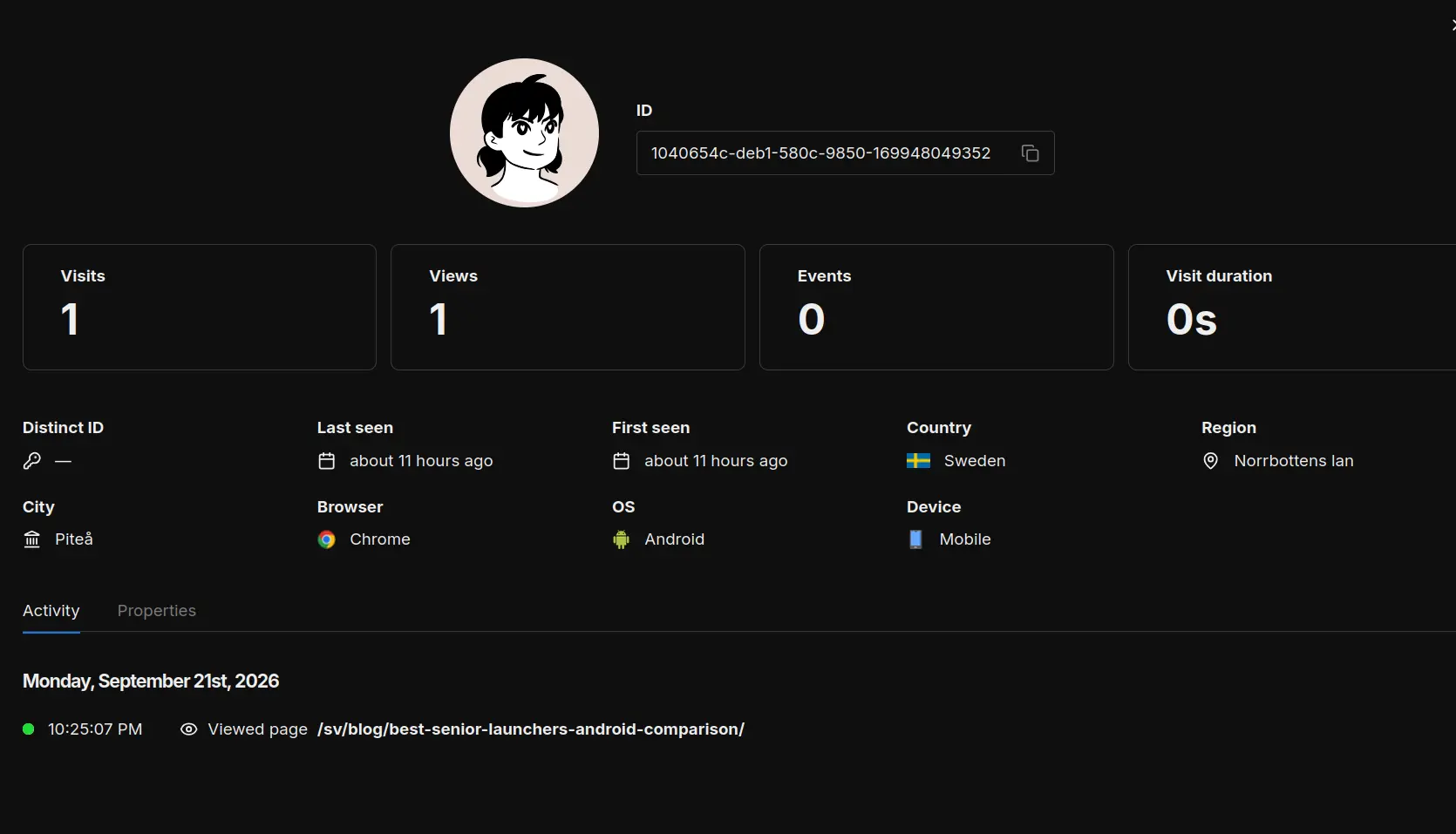
- A visitor arrives on your website. Umami logs the initial pageview (Views: 1) and records the first timestamp.
- The user reads your article for 3 minutes.
- Once finished, the user closes the tab or navigates away.
Because no secondary action occurred (Events: 0), no second timestamp was ever sent to Umami.
Formula:
Visit Duration = Last Timestamp - First Timestamp = 0 Seconds
Umami plays it safe and displays 0s, even if the reader spent several minutes absorbing your content.
🛠️ The Solution: Sending Follow-Up Events to Umami
To provide Umami with a second (or third) timestamp, we can send custom events during the user’s session using Umami’s built-in window.umami.track() function.
Here are two effective implementations: Scroll Tracking and Heartbeat Pings.
Method 1: Scroll Tracking (Data-Efficient & Practical)
Scroll tracking monitors the user’s scroll position on the page. As soon as the reader reaches key milestones (such as 50% or 90% depth), an event is dispatched to Umami. Receiving this event gives Umami a new timestamp, updating the visit duration accordingly.
window.addEventListener('DOMContentLoaded', () => {
  const trackedMilestones = new Set();

  window.addEventListener('scroll', () => {
    if (typeof window.umami === 'undefined') return;

    const scrollHeight = document.documentElement.scrollHeight - window.innerHeight;
    if (scrollHeight <= 0) return;

    const scrollPercent = Math.round((window.scrollY / scrollHeight) * 100);

    [50, 90].forEach(milestone => {
      if (scrollPercent >= milestone && !trackedMilestones.has(milestone)) {
        trackedMilestones.add(milestone);
        window.umami.track('scroll-depth', { percent: milestone });
      }
    });
  }, { passive: true });
});
Advantages:
- Data Efficient: Triggers a maximum of 1 or 2 extra events per pageview.
- Content Quality Indicator: Proves not only how long users stay, but whether they actually scroll down to consume your content.
Method 2: Heartbeat Ping (Precise Time Measurement)
If exact duration measurement matters more to you than scroll depth, you can send a lightweight “heartbeat” ping every 15 seconds—only while the tab is actively visible in the foreground.
window.addEventListener('DOMContentLoaded', () => {
  let secondsSpent = 0;
  const intervalSeconds = 15;
  const maxSeconds = 600; // Stop after 10 minutes

  const timer = setInterval(() => {
    // Pause tracking if the tab is inactive or hidden
    if (document.hidden) return;
    if (typeof window.umami === 'undefined') return;

    secondsSpent += intervalSeconds;
    window.umami.track('heartbeat', { seconds: secondsSpent });

    if (secondsSpent >= maxSeconds) {
      clearInterval(timer);
    }
  }, intervalSeconds * 1000);
});
Advantages:
- Accurate Duration: Continuously updates visit duration in 15-second increments.
- Smart Pause: Automatically pauses timer ticks when users switch tabs (
document.hidden).
⚖️ Which Approach Is Better?
| Metric | Scroll Tracking | Heartbeat Ping |
|---|---|---|
| Data Volume | Very Low (1–2 events) | Higher (multiple events for long reads) |
| Insights | Shows content consumption & scroll depth | Tracks exact active time spent |
| Best For | 🟢 Blogs, Documentation & Articles | 🟡 Interactive Web Apps & Dashboards |
For standard blogs and content sites, we recommend Scroll Tracking. It keeps your Umami event database lean while confirming that readers actually made it halfway or to the end of your posts.
❓ Frequently Asked Questions (FAQ)
1. Does this compromise Umami’s GDPR compliance?
No. Both snippets use Umami’s standard event API (umami.track()). No personal data, cookies, or IP addresses are stored or collected.
2. Does this work with frameworks like Astro, Next.js, WordPress, or Vue?
Yes! You can include the code in a global <script> tag or execute it inside your primary layout component (e.g., inside a React useEffect or Vue onMounted hook).
3. Will heartbeat pings continue if a user switches tabs?
No. The heartbeat script checks document.hidden. If the user moves to another browser tab, the heartbeat pauses until they return.
4. Can I combine both methods?
Yes, technically you can use both. However, keep in mind that combining them will increase the total event count stored in your Umami database.
🚀 Conclusion
A visit duration of 0s in Umami doesn’t mean your audience instantly left. It’s simply a byproduct of privacy-first session tracking on single-page views. By adding a few lines of JavaScript for scroll or heartbeat tracking, you gain accurate insights into how readers engage with your content!